Tools
Tools in CAD Sketcher are either exposed as a workspacetool or as an operator. Note however that either of those use the same interaction system.
Generic Tools
View3D_OT_slvs_add_sketch
Add a sketch
View3D_OT_slvs_delete_entity
Delete selected sketch geometry
View3D_OT_slvs_delete_constraint
Delete constraint by type and index
Workspacetools
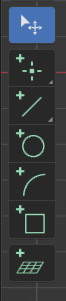
Workspacetools are used to interactively create entities. You can access them from the viewport's "T"-panel. Check the tools section to get familiar with the behavior of CAD Sketcher tools.
INFO: Interaction with extension geometry is only possible when one of the extension tools is active.
Workspacetool Access Keymap
Whenever one of the extension's tools is active the tool access keymap allows to quickly switch between the different tools.
These keys also work while a tool is running: the unfinished element is discarded and the new tool starts.
While typing a number, letters are read as units (e.g. 5cm) instead.
| Key | Modifier | Action |
|---|---|---|
| Esc / Rmb | - | Activate Tool: Select |
| P | - | Invoke Tool: Point |
| L | - | Invoke Tool: Line |
| C | - | Invoke Tool: Circle |
| A | - | Invoke Tool: Endpoint Arc |
| A | Shift | Invoke Tool: Center Arc |
| R | - | Invoke Tool: Rectangle (the variant the toolbar shows) |
| Y | - | Invoke Tool: Trim |
| B | - | Invoke Tool: Bevel |
| O | - | Invoke Tool: Offset |
| D | - | Invoke Tool: Dimension |
| J | - | Invoke Tool: Project Geometry |
Dimensional Constraints:
These start the Dimension tool limited to one kind of dimension; plain D lets it infer the kind from what you pick.
| Key | Modifier | Action |
|---|---|---|
| D | Alt | Distance |
| V | Alt | Vertical Distance |
| H | Alt | Horizontal Distance |
| A | Alt | Angle |
| O | Alt | Diameter |
| R | Alt | Radius |
Geometric Constraints:
| Key | Modifier | Action |
|---|---|---|
| C | Shift | Coincident |
| V | Shift | Vertical |
| H | Shift | Horizontal |
| E | Shift | Equal |
| P | Shift | Parallel |
| L | Shift | Perpendicular |
| T | Shift | Tangent |
| M | Shift | Midpoint |
| R | Shift | Ratio |
Editing Keymap
Available while any of the extension's tools is active.
| Key | Modifier | Action |
|---|---|---|
| X / Del | - | Delete selected entities |
| C | Ctrl | Copy |
| V | Ctrl | Paste |
| D | Shift | Duplicate & move |
| G | - | Move |
| V | - | Align view to the active entity |
| M | Alt | Merge points |
| C | Alt+Shift | Toggle construction mode |
Global Shortcuts
Available in Object Mode regardless of the active tool, also while a tool is running. The object-level tools these start are covered in modeling tools.
| Key | Modifier | Action |
|---|---|---|
| A | Ctrl+Shift | Add sketch / leave the active sketch |
| E | Ctrl+Shift | Extrude |
| R | Ctrl+Shift | Revolve |
| D | Ctrl+Shift | Array (linear or circular, whichever the toolbar shows) |
| B | Ctrl+Shift | Boolean |
| M | Ctrl+Shift | Open the CAD Sketcher pie menu (drawing tools and constraints) |
| Esc | Shift | Switch to Blender's Select tool |
Basic Tool Keymap
The basic tool interaction is consistent between tools.
| Key | Modifier | Action |
|---|---|---|
| Tab | - | Jump to next tool state or property substate when in numerical edit |
| 0-9 / (-) | - | Activate numeric edit |
| Enter / Lmb | - | Verify the operation |
| Lmb (drag) | - | Draw by dragging: press, drag past the Drag Threshold (Preferences > Input), release |
| Esc / Rmb | - | Cancel the operation |
| Z | Ctrl | Cancel the operation (like Esc); press again to undo |
While numeric edit is active
| Key | Modifier | Action |
|---|---|---|
| Tab | - | Jump to next tool property substate |
| 0-9 | - | Activate numeric edit |
| Minus(-) | - | Toggle between positive and negative values |
Selection tools
View3D_OT_slvs_select
Select an entity
Either the entity specified by the index property or the hovered index if the index property is not set
View3D_OT_slvs_select_all
Select / Deselect all entities
View3D_OT_slvs_select_invert
Invert entities selection
View3D_OT_slvs_select_extend
Extend the selection to the entities next to it
View3D_OT_slvs_select_extend_all
Extend the selection to the whole connected chain
Keymap:
| Key | Modifier | Action |
|---|---|---|
| LMB (click) | - | Toggle select |
| LMB (click) | Shift | Extend selection |
| LMB (click) | Ctrl | Subtract from selection |
| LMB (click) | Alt | Select the next entity in the overlapping stack under the cursor |
| Wheel | Alt | Cycle the hovered entity through overlapping ones without selecting |
| LMB (drag) | - | Box select, or tweak the hovered entity |
| LMB (drag) | Shift | Box select (extend) |
| LMB (drag) | Ctrl | Box select (subtract) |
| A | Ctrl | Select all |
| Esc | - | Deselect all |
| I | Ctrl | Invert selection |
| E | Ctrl | Extend selection in chain |
| E | Ctrl+Shift | Select full chain |
| Rmb | - | Open the context menu |
INFO: LMB in empty space will also deselect all.
INFO: Chain selection works with coincident constraints too
INFO: When entities overlap, a plain click grabs the nearest one. Alt+click steps to the next entity down (repeat to dig through the stack), and Alt+wheel cycles the hovered entity so you can preview before clicking. This also works while picking geometry inside a drawing or constraint tool.
View3D_OT_slvs_add_point2d
Add a point to the active sketch
View3D_OT_slvs_add_line2d
Add a line to the active sketch
View3D_OT_slvs_add_circle2d
Add a circle to the active sketch
View3D_OT_slvs_add_arc2d
Add an arc to the active sketch
View3D_OT_slvs_add_arc3pt2d
Add an arc from a start point to an end point, curving the way you set off
View3D_OT_slvs_add_rectangle
Add a rectangle to the active sketch
View3D_OT_slvs_add_rectangle_center
Add a rectangle from its center and one corner
View3D_OT_slvs_add_rectangle_3point
Add a rectangle from one edge and its width, at any angle
View3D_OT_slvs_trim
Trim segment to its closest intersections
View3D_OT_slvs_bevel
Add a tangential arc between the two segments of selected points
The radius follows the cursor and is clamped to what still fits between the neighbouring segments. Type a value to set it exactly; a typed radius is held by a radius dimension on the new arc, which the redo panel can turn off again (or on, for a dragged one).
View3D_OT_slvs_add_offset
Copy and offset selected entities along with their constraints by the distance value
An offset stays tied to what it came from: each offset line is kept parallel to its source, arcs and circles share the source's center, and the segments of a path are held at one common distance, so editing the source moves the offset with it. Type a value to set that distance exactly; as with the bevel, a typed distance is held by a dimension the redo panel can toggle.
VIEW3D_OT_slvs_add_dimension
Add a dimension, inferring the constraint type from the geometry.
The user does not choose between distance, angle and diameter up front:
- a line -> distance (its length); click a second entity while placing to switch: a line -> angle (or the perpendicular distance if the two are parallel), a point -> point-to-line distance, a circle/arc -> edge-to-line distance
- a circle or arc -> diameter; click a point or line while placing to switch to an edge-to-point / edge-to-line distance
- two points -> distance
- point + line -> point-to-line distance
- point/line + circle/arc -> edge distance (measured from the curve's edge)
- circle/arc + circle/arc -> edge-to-edge distance (along the line of centres)
A line/circle/arc drops straight into an interactive placement state after the first pick, where the label is dragged into place (display only, no re-solve) and confirmed with a click. A point needs a partner, so it takes a required second pick before placement.
kind restricts the tool to one dimension type (distance, angle or
diameter), and align/radius/supplementary preset how it measures,
so every former dimension tool is this operator with flags.
VIEW3D_OT_slvs_project_geometry
Project a picked mesh vertex, edge or face into the active sketch
Project Geometry brings a mesh object's edges into the active sketch as native construction points and lines. The projected points stay linked to their source vertices, so editing or transforming the source object updates the projection.
Workplane tools
A workplane is any Blender object whose transform defines the sketch plane (see code documentation). These operators manage the workplane an active sketch is anchored to.
View3D_OT_slvs_align_workplane_cursor
Align workplane to the 3D Cursor
View3D_OT_slvs_make_workplane_free
Stop the workplane following its mesh face and keep it where it is. Other sketches on the same workplane stay anchored
View3D_OT_slvs_reattach_workplane
Click a mesh face to anchor this workplane to it, replacing any current anchor. Moves every sketch on the workplane
View3D_OT_slvs_change_sketch_workplane
Pick a workplane or mesh face to move the active sketch onto. The sketch keeps its geometry and constraints